
Layer view
Show one layer of a build, or a few, and work through it from the bottom up.
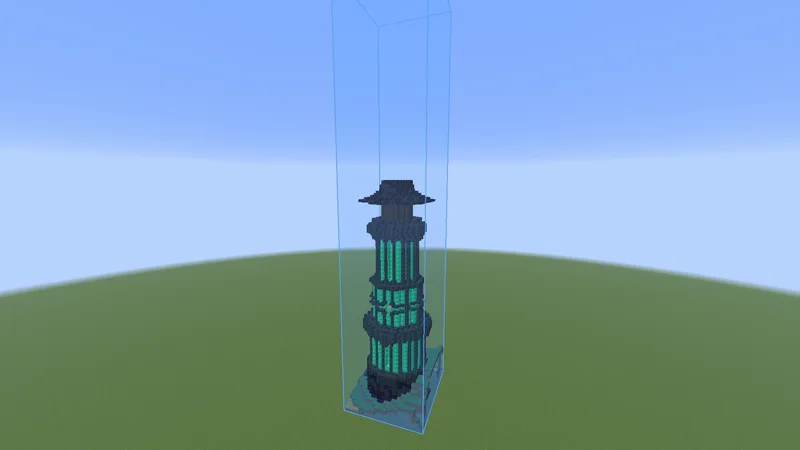
Turn it on #
- Open the Loaded tab and select the build.
- In the View group, set Layers to On.
- On the Layer row, use the arrows to go up and down. Click the layer number between them to jump to the layer you stand on.
- On the Range row, use - and + to show more layers at once. Click the number to go back to one.
| Key | Action |
|---|---|
| . | Layer up, while you play |
| , | Layer down, while you play |
The keys also turn the layer view on, so you do not need the menu for it.
Back to the whole build #
Only one layer showing, and you want all of it? Open the Loaded tab, select the build and set Layers to Off. A press of . or , turns it on again, so that is often how it got switched on.
What follows the layer view #
- Easy place and the The printer only place in the layers on screen.
- The Status colors only mark those layers.
- The progress on screen counts those layers and says so, for example "layer 42%". A finished layer says Layer done.
- The Material list can switch between This layer and Whole build.
- Paste only pastes the layers in view.
- The Gather card counts only those layers.
The layer view is set per build and is remembered with it. To show only some blocks instead of some layers, see Show only some materials. The two work together.
 On the status panelThis icon, with the layers on show after it, while the layer view is on. See Status panel.
Next, you may want to
Something missing or wrong on this page? Say so on Discord.