Status colors
The colors that mark wrong, turned and extra blocks, and the other hints on screen.
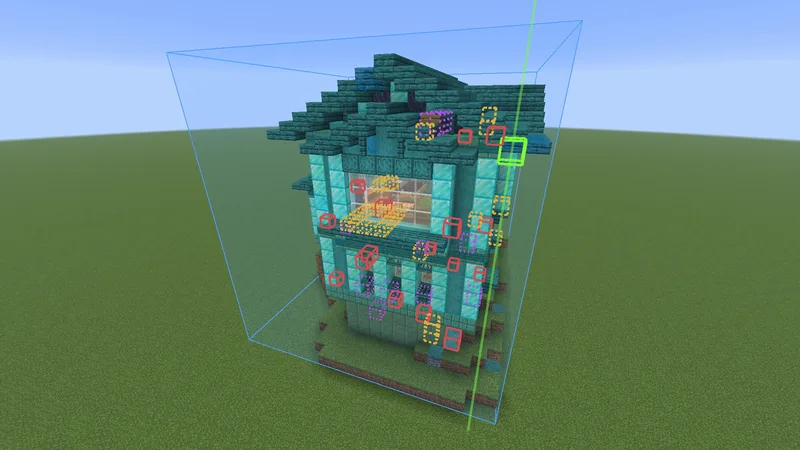
The colors #
| Color | Meaning |
|---|---|
| Amber, dashed | Wrong state: the right block, turned or set the wrong way. Also a container with the wrong items in it, see Container contents. |
| Red | Wrong block: a different block than the build asks for. |
| Purple | Extra: a block where the build wants nothing. |
Blocks that are right are not marked. Blocks that are missing show as the ghost.
Outline or tint #
Status overlay in the Rendering tab of the settings has three choices. Outline draws a border and keeps the block itself visible, and is the default. Tint colors the whole block. Off hides the colors.
- Outline border width default 5
- How thick the border is, in Outline mode.
- Status overlay opacity default 100%
- How strong the colors are, from 5% to 100%. Turn it down on a build with many mistakes.
- Show marks through blocks default On
- Marks a mistake inside a wall too. Off marks only the sides you can see.
- Wrong state default Amber
- The color for the right block turned or set wrong. Under Wrong block colors.
- Wrong block default Red
- The color for a different block.
- Extra default Purple
- The color for a block where the build wants air.
Outline missing blocks #
With Outline missing blocks on, the blocks that still have to be placed get an outline on the outside of the build, on the sides that face you. That helps to find a few missing blocks in a big build. It is off by default. Its color, opacity, width and how far away it is drawn are set right under it.
Show only one kind #
Each build has a Show row in the View group of the Loaded tab. Click it to go to the next choice. The Cycle view filter key does the same while you play. It has no key until you set one.
| Show | What is drawn |
|---|---|
| Unbuilt | The default. Everything that is not right yet. |
| Wrong state | Only blocks that are wrong: a different block, or the right block turned or set wrong. |
| Extra | Only blocks where the build wants air. |
Look at a block #
With Look-at block info on, a small card names the block you look at. For a block of a build it says whether it is right, or what it should be and what is there now. While you stand in a build, the Status panel carries this. Elsewhere it is its own card, the Look-at card, at the top middle of the screen.
The next block #
With Highlight next block on, the next block to place is marked with a box and a beam, and its name shows when you are close. It picks a block you carry and can place right now, and prefers the lowest one, so you build from the bottom up. Next-block color sets its color. Left alone, it picks one that stands out from your other colors.
Build complete #
When you place the last block, Build complete shows on screen and chat says what went into it: blocks placed, time spent and the main blocks. A build that matches exactly hides its ghost by itself, and chat offers Show again and Unload. A build you changed along the way counts as done once every block is placed. Chat then says how many blocks differ from the schematic, and offers Hide and Unload.
Things you cannot fix #
With Survival sanity checks on, states that nobody can place are not counted as mistakes. That goes for creative too.
- Leaves of a tree, how far a crop has grown, a lit furnace, a piston that was extended.
- Dirt where the build asks for grass, farmland or a path, when the block above it would turn that back into dirt anyway.
- A pressed button or a pressure plate someone stood on.
What you can place or click into shape still counts: a lever, the delay of a repeater, an open door. So does redstone that is powered, such as a lit lamp.
Next, you may want to
Something missing or wrong on this page? Say so on Discord.