
Settings
Every option in the settings screen, with its default.
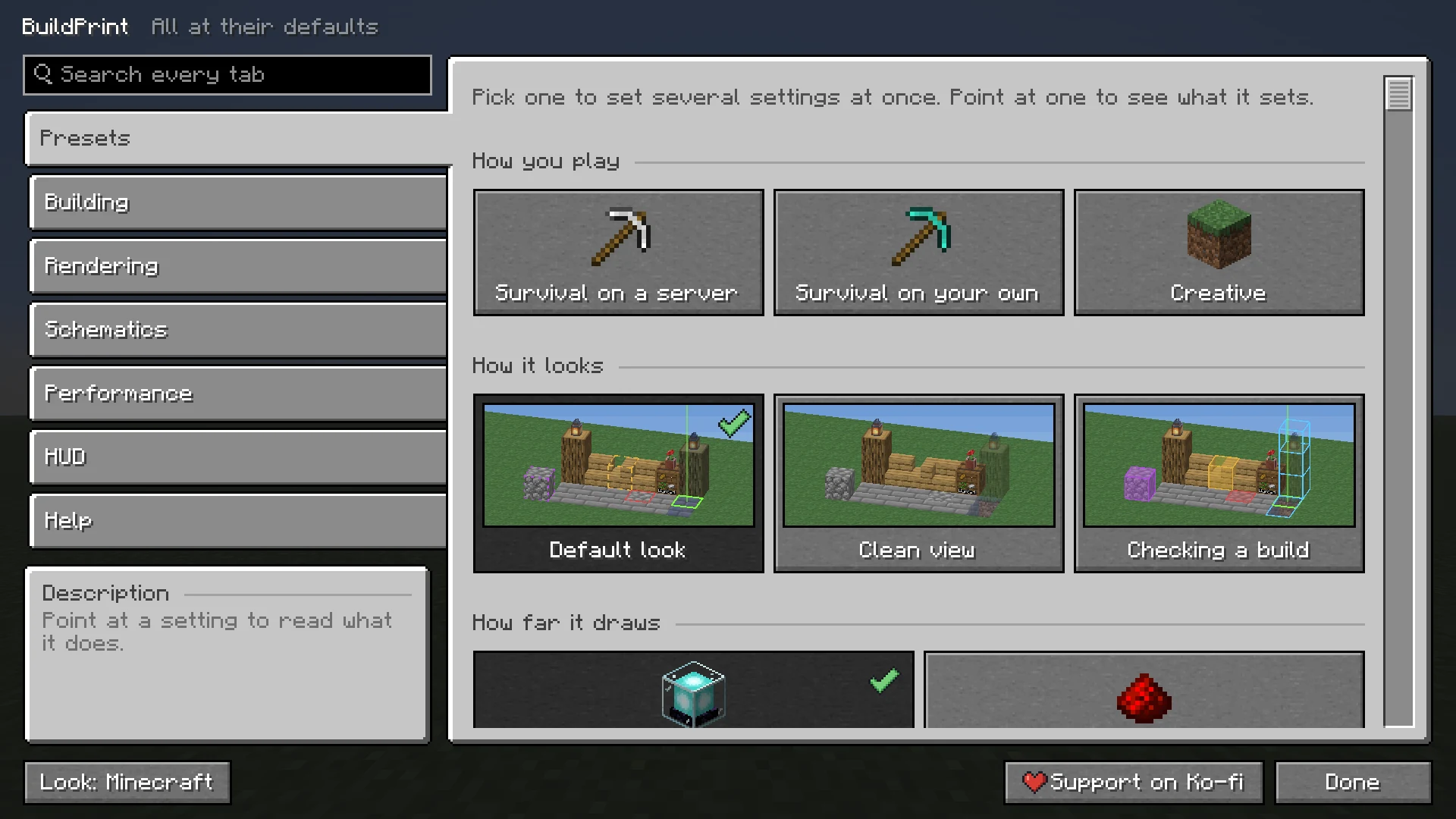
Press B and click the gear at the bottom right of the menu, or type /buildprint config. The same screen is in Mod Menu on Fabric and in the mod list on NeoForge. The settings have seven tabs: Presets, Building, Rendering, Schematics, Performance, HUD and Help.
- A change applies at once. Each row has its own reset, and the screen says how many settings you changed.
/buildprint resetputs all of them back, and/buildprint reset hudone tab. - Groups few people change start folded away: What easy place does, Auto-use tools, Crafters, Wrong block colors, Ghost appearance, Placements and Distances. Click a group's name to open it. A group with a changed setting starts open.
- Point at a setting to read what it does, beside the list. Search every tab finds a setting by its name or by what it does.
- The look button switches between the Minecraft look and the VoxelSprout look, which can be dark, light or the same as your computer. The choice counts for every VoxelSprout mod.
- On a server that turned something off with VoxelSprout Policy, those settings are grayed out with the reason. Your choice is kept for other servers. See Servers.
Presets #
A preset sets several settings at once. Point at one to see what it sets, and click Use.
| Group | Preset | What it sets |
|---|---|---|
| How you play | Survival on a server | Easy place as hand building would do it: nothing placed in mid-air or in liquids, and a calm printer that stays in hand reach. |
| Survival on your own | Blocks in mid-air and in liquids, and a printer that reaches a bit further. | |
| Creative | Blocks in mid-air and in liquids, and the printer at full speed. The printer turns your view for blocks that face a direction. | |
| How it looks | Default look | Outlines on what is wrong, a clear ghost, and the next block highlighted. This is how BuildPrint starts. |
| Clean view | No marks on wrong blocks, a fainter ghost, and no highlight on the next block. | |
| Checking a build | Wrong blocks colored in whole, missing blocks outlined, and a fainter ghost. | |
| How far it draws | Full detail | Marks and builds drawn as far as BuildPrint starts with. |
| Slower computer | Fewer marks, drawn closer by, and fewer entities, for large builds on a computer that struggles. |
Building #
- Easy place default Off
- Right-click the ghost to place the right block. See Easy place.
- Drag place (hold to build) default On
- Hold right-click to keep placing.
- Auto-rotate default On
- Turns your view for a moment so stairs, logs and furnaces land the right way. Off means blocks that face a direction may need turning by hand.
- Place in mid-air default Off
- Places blocks with nothing to build against.
- Place in liquids default On
- Builds into water and lava with nothing solid next to it.
- Don't place extra blocks default On
- Never places a block where the build wants nothing, except blocks on the Mid-air blocks list. Under What easy place does, with the three below.
- Build prerequisites first default On
- Places the block something rests on before the thing itself.
- Write sign text default On
- Fills in the text of a sign when it is placed.
- Mid-air blocks default Scaffolding
- Blocks that may be placed with nothing under or beside them. Type a block's name to add one.
- Easy break default On
- Hold left-click to break only wrong and extra blocks. See Easy break.
Printer (automation) #
- Printer mode (auto-build) default Off
- Places missing blocks around you. See The printer.
- Printer speed default 4 blocks/tick
- From 1 to 16.
- Printer reach default 4 blocks
- From 1 to 6 blocks.
- Fix wrong states default On
- Also fixes placed blocks that are set wrong.
- Face directional blocks yourself default On
- Waits until you look the right way for barrels, pistons and the like.
Auto-use tools #
- Auto-use shovel (paths & extinguish) default On
- Makes dirt paths and puts out campfires.
- Auto-use flint & steel (light) default On
- Lights candles, candle cakes and campfires.
- Auto-use axe (strip logs) default On
- Strips logs and wood.
- Auto-use hoe (till farmland) default On
- Tills farmland.
- Auto-ignite nether portals default On
- Lights the obsidian frame once it is complete.
- Survival sanity checks default On
- Does not count states nobody can place as mistakes. See Status colors.
- Auto-use bone meal (grow plants) default On
- Grows short grass, ferns and seagrass into the tall kind.
- Auto-use water bucket (experimental) default Off
- Waterlogs blocks after placing. Can misfire.
Tools are taken from your hotbar or inventory. In creative they are made for you.
Crafters #
- Lock crafter slots default On
- Switches off the same slots as in the schematic when a crafter is placed.
- Fill crafters with their items default Off
- Puts the items of the schematic into the crafter, from your inventory.
Rendering #
A picture at the top of the tab shows the marks and the ghost as these settings draw them, and changes as you change them.
- Status overlay default Outline
- Off, Outline or Tint. Under Wrong blocks. See Status colors.
- Outline border width default 5
- Thickness of the border in Outline mode, from 3.5 to 12.
- Status overlay opacity default 100%
- How strong the colors are, from 5% to 100%.
- Show marks through blocks default On
- Marks mistakes inside walls too. Off: only the sides you can see.
- Wrong state, Wrong block, Extra default Amber, red, purple
- The color of each mark, under Wrong block colors.
Ghost #
- Ghost opacity default 85%
- How see-through the ghost is.
- Tint the ghost default On
- Pulls the whole ghost toward one color.
- Tint color default Blue
- The color it is tinted toward.
- Tint strength default 30%
- How strongly it is tinted, from 5% to 100%.
Missing blocks #
- Outline missing blocks default Off
- Outlines the blocks still to place, on the outside of the build and the sides that face you.
- Missing outline color default Light blue
- The color of those outlines.
- Missing outline opacity default 100%
- How strongly they are drawn.
- Missing outline width default 2
- How thick they are, from 1 to 8.
- Missing outline distance default 64 blocks
- How far from you they are drawn, from 16 to 128.
Containers #
- Container contents default On
- Shows what goes inside containers. See Container contents.
- Label containers that need items default On
- Shows the wanted items on the container in the world.
- Slot order counts in chests default On
- Compares chests, barrels and shulker boxes slot by slot. Off compares only the totals.
Other rendering settings #
Under Other in the Rendering tab.
- Highlight next block default On
- Marks the next block to place.
- Next-block color default Automatic
- The color of that highlight. Left alone, it picks one that stands out from your other colors. It shows in the picture at the top of the tab.
- Entity render distance default 64 blocks
- From 16 to 256.
Ghost appearance #
- Vanilla face shading default On
- Shades faces by direction.
- See through solid blocks default Off
- Draws solid ghost blocks like glass. Only with Skip hidden faces on.
Schematics #
Under Placements:
- Remember placements default On
- Saves what is loaded where, per world and per server.
- World fingerprinting default On
- Shows a build only in the world you placed it in, on servers with several worlds behind one address. See Servers.
- Snap in the editor default On
- Builds stay on the ground as you drag them, and box edges pull in to what is built. Hold Alt while you drag to place freely. See Landing on the ground.
- Tool guide default On
- Walks you through each editor tool the first time.
/buildprint resetstarts it again. See The tool guide.
Under Other mods:
- Import from Litematica/Schematica
- Brings over your Litematica placements. See Coming from Litematica.
Free camera #
How you move in the The editor. Also under Other mods.
- In your own worlds default Free camera
- Free camera or walk while editing in single-player.
- On a new server default Ask
- Ask the first time you edit on a server, or always use the free camera, or always walk.
- Servers
- What you picked on each server. Forget makes that server ask again.
- Forget every server
- Every server asks again.
Performance #
- Adapt to frame rate default On
- Draws less of the overlay and the ghost when the frame rate drops.
- Hide builds when lag persists default On
- Hides the nearest build when the frame rate stays low. Chat offers Show it again, and so does the Loaded tab.
- Overlay reach — inside a build default 64 blocks
- How far the colors are drawn while you are in a build, from 16 to 256.
- Overlay reach — outside a build default 32 blocks
- The same, while you are outside, from 16 to 128.
- Max marks default 2048
- The most marks drawn at once.
- Next-block reach — inside a build default 16 blocks
- How far the next block is looked for.
- Next-block reach — outside a build default 16 blocks
- The same, while you are outside.
- Auto-align search radius default 12 chunks
- How far auto align looks around you, from 4 to 32 chunks.
HUD #
Under On screen:
- Move panels on screen
- Opens a screen where you drag the cards into place. See Status panel.
- Reset all panels
- Puts every card back where it started, at full size and showing what it showed at first, the cards of other VoxelSprout mods too. Click Reset all twice to confirm.
- See-through cards default On
- The cards over the world let the game show through their background.
- Card opacity default 80%
- How much of their background is there.
- Make room for chat default On
- Cards step aside while new chat lines show, then come back. Off, chat never moves them. Opening chat never moves them: it is drawn over them while you type.
- Look-at block info default On
- A small card about the block you look at.
- Gather card as built default Off
- Lists the blocks as the build uses them on the Gather card, stairs, slabs and walls each on their own row, instead of the raw materials to go out for. See Gather.
Then a group per card, under its name: Build status, Hidden builds, Look-at card, Gathering and Saving a big selection. Each has the same rows.
- Show default Auto
- Auto, Full, Compact or Hidden.
- Position default Top left
- Where the card sits. The look-at card starts at the top middle. Custom after you dragged it.
- Size default 100%
- From 50% to 150%, on top of your GUI scale. Rounded to whole pixels so the text stays sharp, so a step can make no difference at a low GUI scale.
- Shrink to fit the screen default On
- Draws the card smaller when it would cover more than about a third of the width or half the height of the screen.
- Hide with F3 default On
- Hides the card while the F3 screen is open. Hitboxes (F3 + B) do not hide it.
Help #
- Walkthrough
- Start shows the first-start walkthrough again: what BuildPrint does and its keys.
- Report a problem
- Write a report... opens the report screen. See Bug reports.
- Offer to report errors default On
- After a crash or an error in BuildPrint, offers to send a report. Nothing is sent without you pressing Send.
- Wiki
- Opens this wiki.
- Discord
- Joins the Discord, for questions, problems and ideas.
Next, you may want to
Something missing or wrong on this page? Say so on Discord.