
Moving and aligning
Put a loaded build where you want it: with the mouse in the editor, by typing coordinates, or with auto align for a build that is partly standing.
There are four ways to put a loaded build where it belongs. Pick the one that suits the job:
| Way | Best for |
|---|---|
| The editor, G | Almost always. Drop the build where you aim, drag it, turn it. Start here, also for a schematic you downloaded. |
| The Loaded tab, B | Typing exact coordinates. |
| Auto align | Only when part of the build already stands in the world, or for a schematic going back on the ground it was saved from. A schematic you downloaded has nothing to match in your world: use the editor for that. |
With the mouse in the editor #
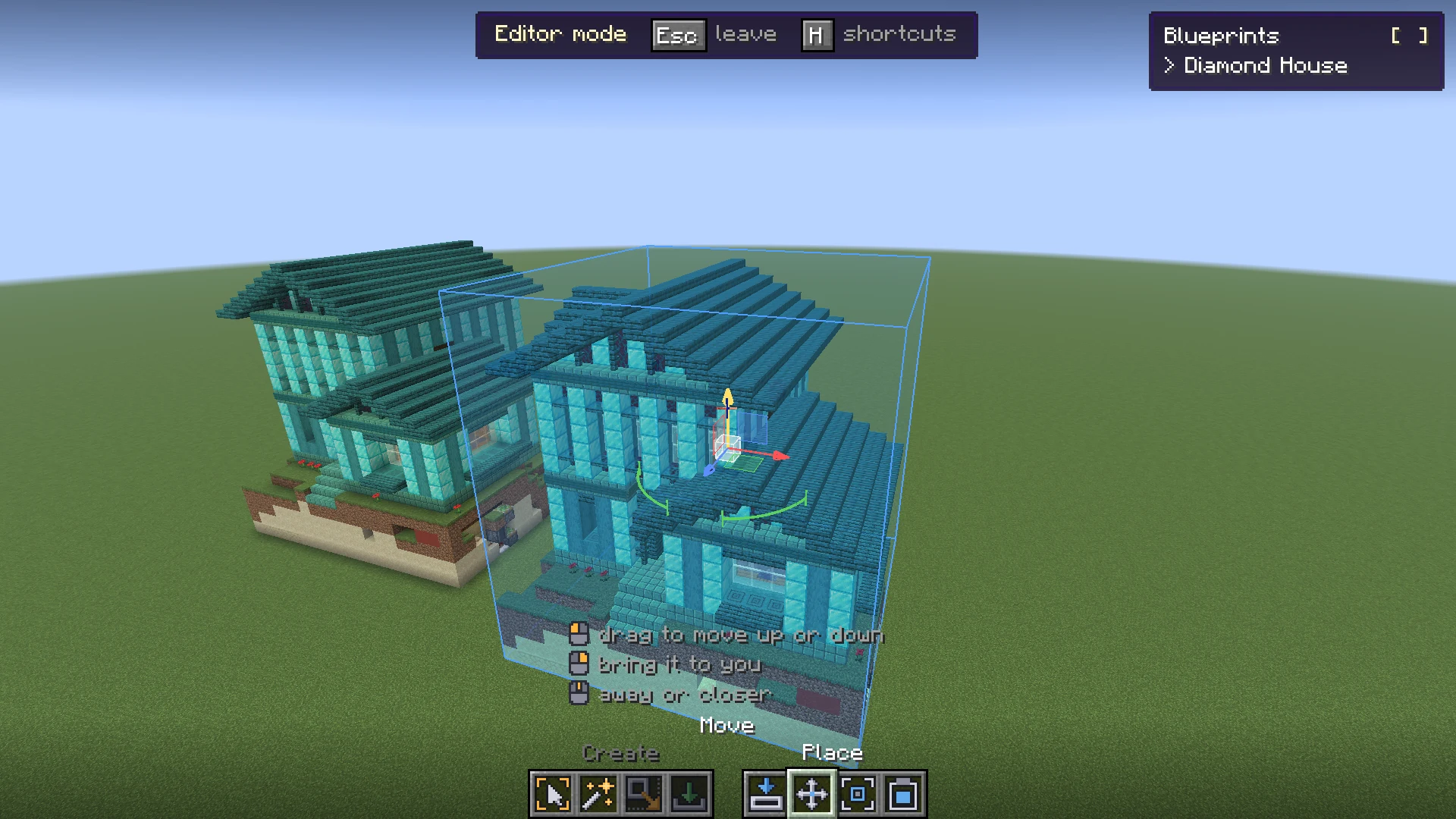
- Press G to open the editor and fly to where the build should go. With several builds loaded, step through them with [ and ], or click one with Move or Auto align to switch to it.
- Pick Place (5) and left-click the ground: the build drops there. Right-click brings it to you.
- Pick Move (6) and drag an arrow to slide it: red east and west, green up and down, blue north and south. The white cube in the middle moves it freely.
- Still with Move, click a green arc to turn it a quarter, right-click an arc to turn it back, or drag one to turn it round. Right-click the white cube to flip it.
- Press Esc to leave. The build stays put.
Without dragging #
- Scroll with Place or Move to push the build away or bring it closer, a block a step, along the axis nearest to where you look.
- With Move, the arrow keys move it forward, back and sideways from the way you face, and Page Up and Page Down up and down.
- Right-click off the gizmo brings it to you.
Turn around a block, or land on the ground #
- With Move, press P on a block and the build turns around that block. R goes back to its middle.
- A build on the ground stays on it while you drag it across, and dragging it down lands it there. Hold Alt while you drag to move it freely.
Every tool, with pictures of the gizmo, is on the editor page.
In the Loaded tab #
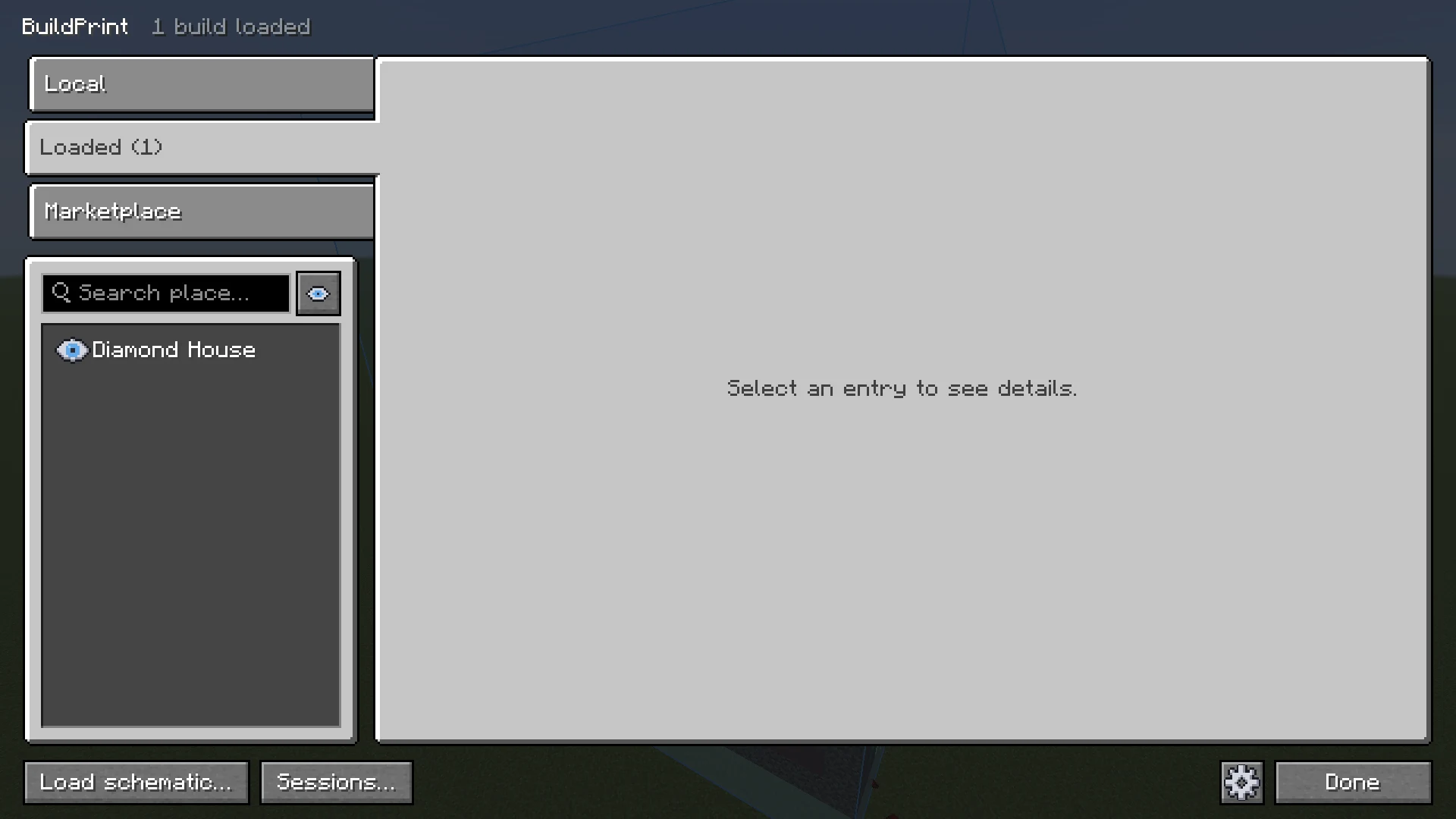
| Control | What it does |
|---|---|
| Name | The name the build has in BuildPrint. The file keeps its own name. |
| Position | The X, Y and Z of the build. Type a number, drag left and right or up and down over it, or scroll over it. The build moves as you go. |
| Auto | Lines the build up with the world around you. Click again to stop. |
| Rotation | Turns the build a quarter turn clockwise around its own center. |
| Mirrored | Mirrors the build. Together with Rotation this reaches every orientation. |
| The eye in the list | Shows or hides the build. |
| The bin in the list, or Remove | Unloads the build. The file stays. |
Every change shows in the world right away. Nothing needs to be loaded again. Moving, turning or mirroring a hidden build shows it again. While you do, the rest of the menu fades so you can see the build. It comes back when you stop, or when you move the pointer off the card.
On a wide window the Loaded tab also shows the build in 3D, with how much is placed, left to place, wrong or extra.
Auto align #
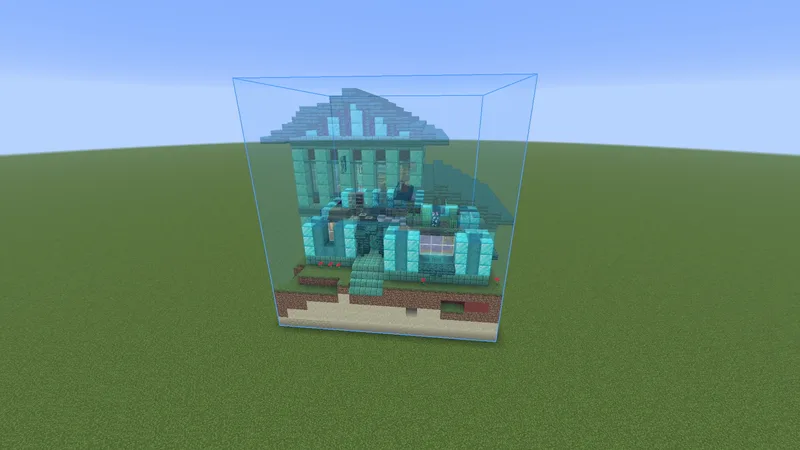
Auto align finds where a build belongs. It is for a build that is already partly standing, or for putting a schematic back on the ground it was saved from.
- Stand near the build, so its chunks are loaded.
- In the editor, pick Auto align (7) and click the build. Or open the menu, select the build in the Loaded tab and click Auto.
- Wait a moment: the progress shows above the hotbar. Click again (or right-click in the editor) to stop.
- When it is done, it says how much of the build matches.
- It first looks for the rarest blocks of the build in the world around you.
- If the build is not standing yet, it matches the terrain the schematic was saved with.
- It sets position, rotation and flip. If nothing matches well enough it says so and leaves the build where it was.
- If only part of the build was in range, it says that too: move closer and run it again.
The search radius is 12 chunks by default. Change it with Auto-align search radius in the Settings. A larger radius takes longer.
When auto align finds nothing #
- Chat says why it stopped. Most often too little of the build stands yet to be sure, and it leaves the build where it was rather than guess.
- Build a little more of it, and stand close so its chunks are loaded.
- Blocks that are rare around you count the most. A few of those in place make the build much easier to find than a lot of stone or dirt.
- Still nothing? Put it in place with the editor, with Position in the Loaded tab, or with
/buildprint place atwhile you look at a corner.
Builds in a session #
A build that is shared in a session has its position set by the session. Only the owner and admins of the session can move it.
Builds kept by another mod #
A build that another mod keeps up to date in BuildPrint sits where that mod put its blocks. It can be moved, but not turned or mirrored.
With commands #
Everything above also works from chat, with /buildprint place:
| Command | What it does |
|---|---|
/buildprint place here | Moves the build to where you stand. |
/buildprint place at | Moves it to the block you look at, or to the coordinates you give. |
/buildprint place move <n> [dir] | Moves it by a number of blocks, the way you face or in the direction you give. |
/buildprint place rotate, flip | Turns it a quarter, or mirrors it. |
/buildprint place align | Runs auto align. |
/buildprint place list, target | With several builds loaded: lists them, and picks the one the other commands work on. |
See Commands for all of them.
Next, you may want to
Something missing or wrong on this page? Say so on Discord.