Swap materials
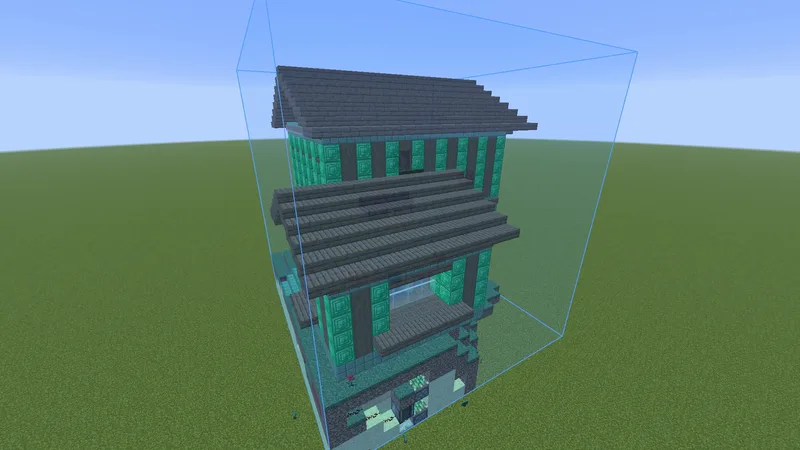
Build a schematic out of other blocks without changing the file.
Swap a block #
- Open the Material list of a build in your world, with View on As built.
- Click the swap button on a row.
- Search for the block to use. The schematic's own block, blocks that are already in the build and blocks you carry, also in shulker boxes and bundles, are listed first and marked.
- If the new block can be placed in more than one way, choose how, then click Swap.
What follows the swap #
The ghost shows the new block, easy place and the printer place it, the colors check against it and the material list counts it.
- Direction and shape carry over where the new block has them. Oak stairs swapped for stone brick stairs face the same way.
- Swapping a block for itself, placed another way, works too: bottom slabs in the file can become top slabs in the build.
- Don't build it leaves those blocks out. They move to Removed by swap at the end of the list, to undo from there.
- A swapped row shows the block it came from. Click the row to change how the new block is placed. The undo button on the row puts one back. The button at the bottom, Undo the swap or for example Undo 3 swaps, undoes them all.
Swaps are kept with the placement, not in the file. They are still there after you log out and in again. Save as a file, at the bottom of the list, saves the build with your swaps as a new file next to the original.
In a session #
In a session swaps apply to everyone. Only the owner and admins can swap.
Next, you may want to
Something missing or wrong on this page? Say so on Discord.