Marketplace
Browse community builds in the game, place them, and publish your own.
Browse and place #
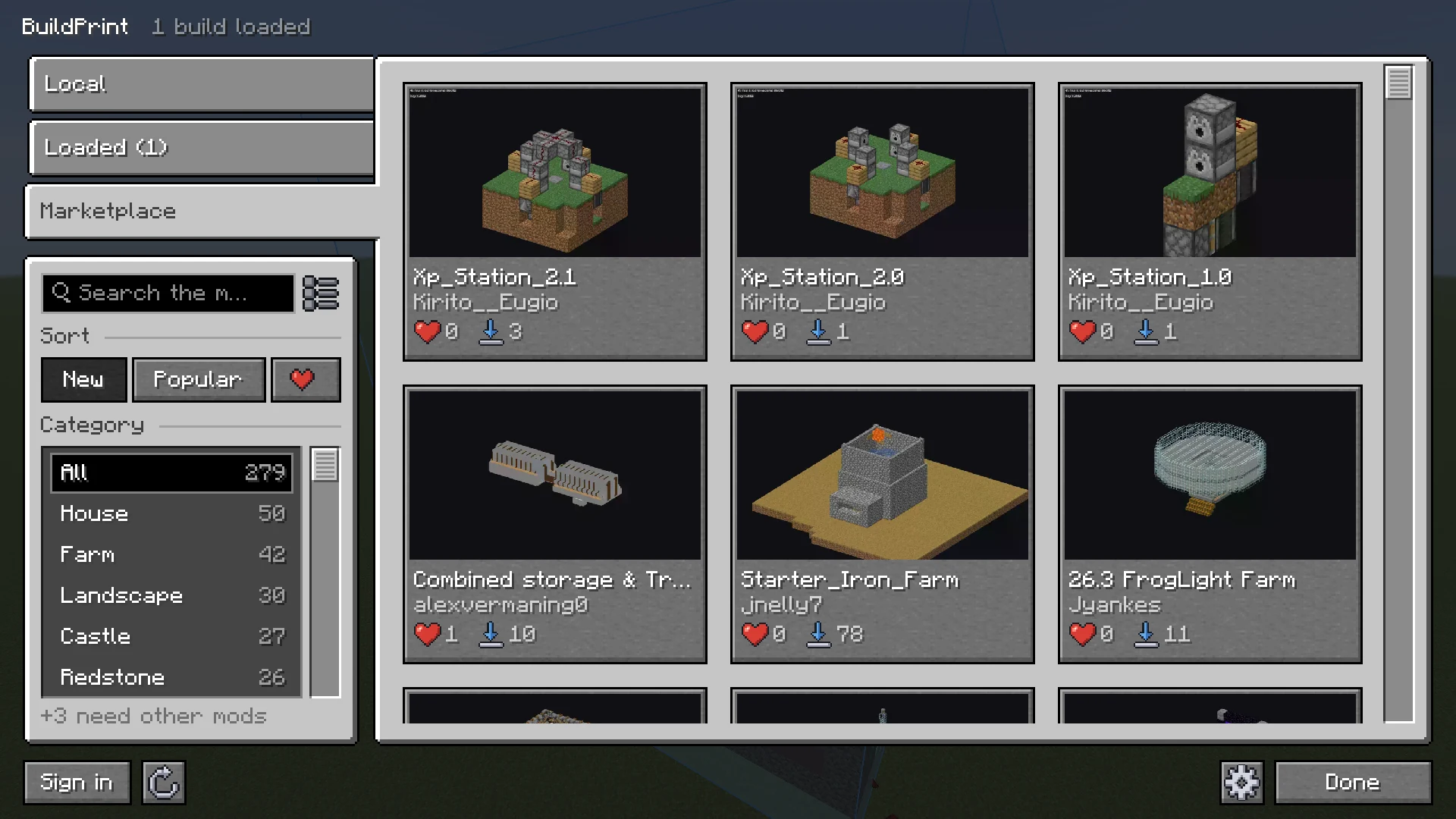
- Press B and open the Marketplace tab.
- Search, sort (New, Popular or Most liked), and filter by category. The builds show as tiles or as a list.
- Only builds that work on your game are listed: ones that use no blocks newer than your Minecraft version, whatever version they were saved in, and no blocks from mods you do not have installed. The line under the categories, for example +3 need other mods, shows the rest.
- Click a build for pictures, size, block count, tags and description.
- Download saves it to
schematics/Marketplace/. - Place downloads it and puts it in your world as a ghost.
You do not need an account for any of this. The same builds are on the marketplace on this site, where you can look at them in 3D, filter by game version and see which mods a build needs.
Sign in #
- Click Sign in at the bottom of the Marketplace tab.
- The game shows a few digits. Click Open sign-in page.
- Check that the page in your browser shows the same digits and press Approve.
You never type a password in the game. Signed in, you can like builds and publish your own. Sign out from the same place, or from your account on this site.
Publish a build #
- Select the file in the Local tab.
- Click Publish. If you are not signed in yet, you are asked to first.
- Drag to frame the build, scroll to zoom, and click Take pictures from here. The pictures are lit by the build itself, with its shadows and lamps.
- Add a title and a category. Description and tags are optional.
- Click Publish. The Marketplace tab then opens on your build.
Next, you may want to
Something missing or wrong on this page? Say so on Discord.